AI can help you get a work email from blank page to usable draft faster, but it needs more than “write a professional email.” Give it the purpose, reader, verified facts, tone, and next step you want. Then check every name, date, promise, and attachment yourself before sending. That keeps the tool in the role of a drafting partner—not the person making commitments for you.
This guide walks through a reusable prompt, a before-and-after example, and a short review checklist. It works with most AI writing assistants; exact features and privacy settings vary by product and account.
The five details that make an AI email draft more useful
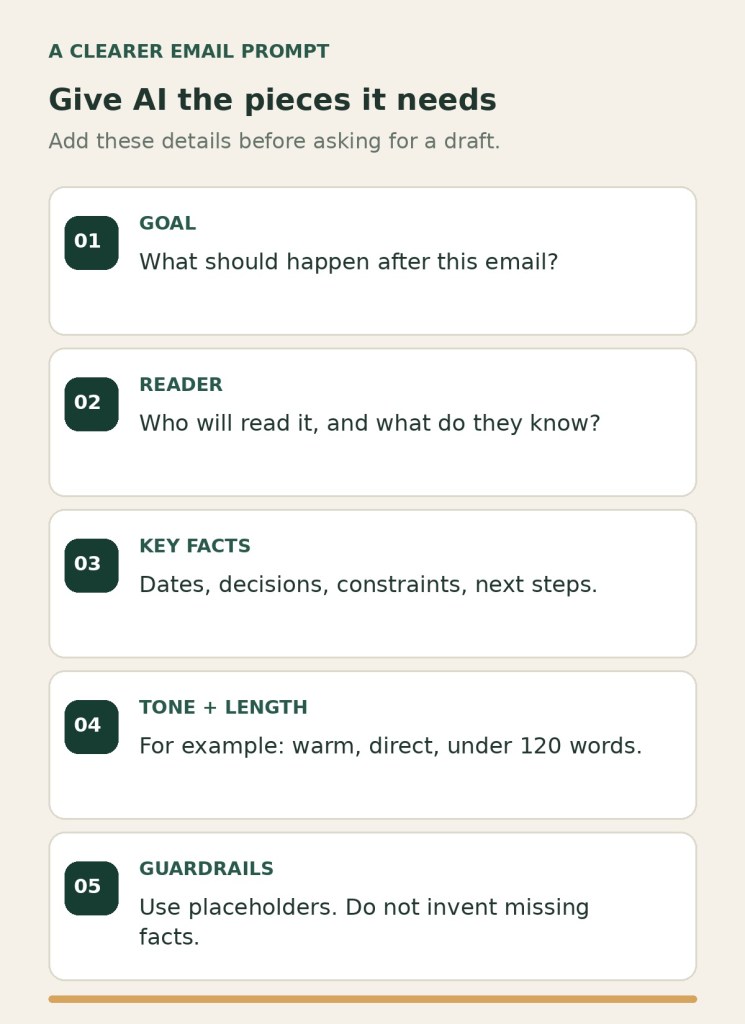
A strong request gives the assistant enough context to write a specific message without guessing. Before you ask for a draft, jot down:
- Goal: What should happen after the reader sees the email?
- Reader: Who is receiving it, and what do they already know?
- Key facts: Which dates, decisions, amounts, or constraints must remain accurate?
- Tone and length: Should it sound warm, direct, formal, or brief? Give a word limit if useful.
- Guardrails: What should the assistant leave out, and should it ask questions when details are missing?
Copy-and-paste prompt for a work email
Replace the brackets with your real details. Keep only information you are allowed to share with the AI tool you use. If the task involves confidential company or customer information, follow your employer’s policy and use approved tools; placeholders can often preserve the context without exposing private details.
Help me draft a work email.
Goal: [What I want the reader to do or decide]
Reader and context: [Who they are and what they already know]
Verified facts: [Dates, decisions, details that must stay accurate]
Tone: [For example: warm, direct, and respectful]
Length: [For example: under 150 words]
Include: [The request, deadline, or next step]
Avoid: [Unconfirmed facts, promises, or unnecessary background]
If essential details are missing, ask me up to three questions before drafting. Then provide a subject line and email body. Do not invent facts or make commitments I did not give you.
This format follows a useful principle in OpenAI’s prompt guidance: be clear and specific, include enough context, and refine the request after reviewing the first response. You do not need special terminology. Plain instructions usually make it easier to spot whether the draft matches your intent.
Example: turn a vague deadline request into a clear email
Suppose you need a coworker to send a revised draft. “Please send this soon” does not say which file, what “soon” means, or what to do if the deadline is unrealistic. A better prompt gives those details and asks for a concise, courteous request.
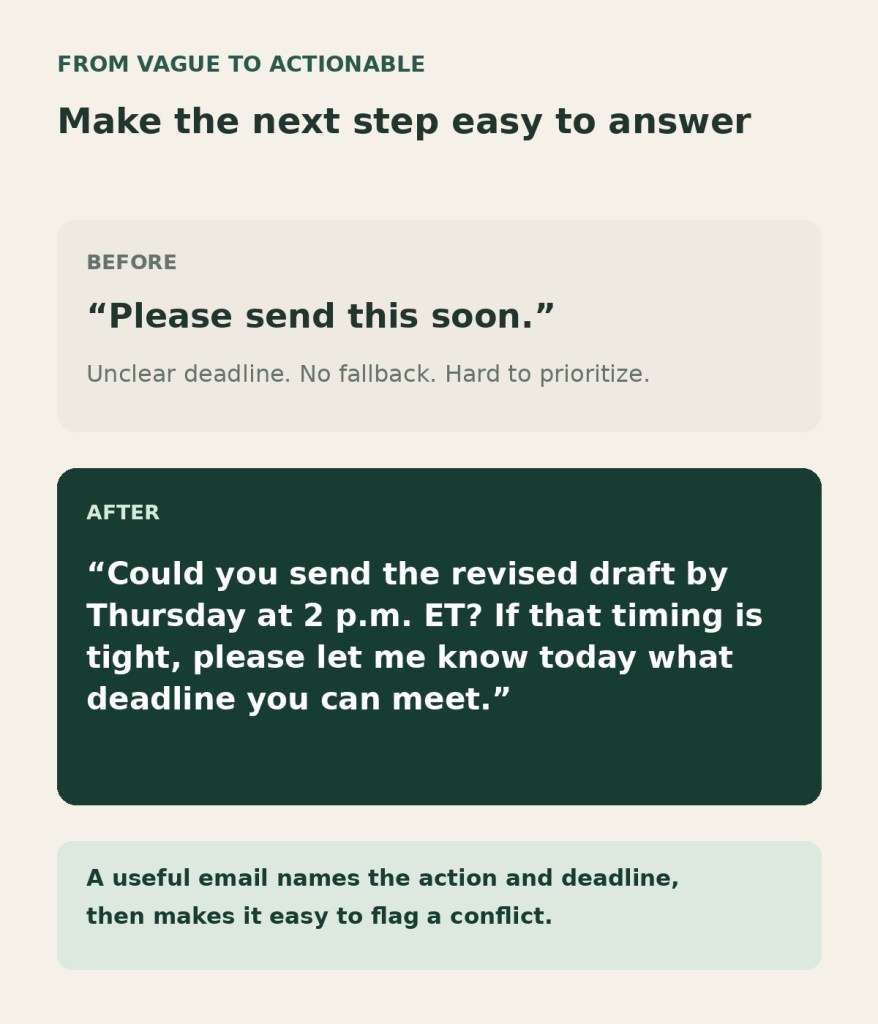
Here is the same request as a complete draft:
Subject: Revised draft by Thursday at 2 p.m. ET?
Hi Jordan,
Could you send the revised draft by Thursday at 2 p.m. ET? If that timing is tight, please let me know today what deadline you can meet.
Thanks,
Alex
The example is only a pattern. Replace the names and time with details you have confirmed. If the deadline is not fixed, tell the AI that it should offer a proposed date for you to approve instead of presenting one as a decision.
Three everyday email jobs AI can help with
1. A polite follow-up after no reply
Give it the date of your earlier message, the item you need, and the next step. Ask for a neutral reminder that does not imply blame. Example instruction: “Write a short follow-up asking whether the vendor can confirm the delivery date by Friday. Do not imply that the delay is their fault.”
2. A status update that is easy to scan
Provide what is complete, what is still open, the owner of the next step, and any risk to timing. Ask for a brief subject line and bullets only if they make the update easier to read. Verify that the draft does not turn a possibility into a promise.
3. A respectful “no” or a request to change scope
State what you can do, what you cannot take on, and whether you want to suggest an alternative. Ask the assistant to keep the boundary clear without adding an apology or explanation you do not mean. Read this kind of draft closely so it reflects your actual decision.
Keep the draft sounding like you
AI-generated writing can sound smoother than it sounds natural. To keep your own voice, ask for one specific tone—such as “friendly and direct”—instead of “make it perfect.” If your organization permits it, you can provide a short, non-sensitive sample of your writing and ask the assistant to preserve its sentence length and level of formality. You can also simply replace phrases that you would never say.
Try a small revision request instead of starting over: “Keep the facts and request unchanged. Make the opening warmer, remove the filler sentence, and keep the email under 120 words.” Review the revised version against your original goal before using it.
Protect private information and check the draft before sending
AI services do not all handle data the same way, and workplace accounts may have different controls from personal accounts. OpenAI’s current guidance says available data controls depend on the plan, account type, and workspace settings. Follow your organization’s rules, and do not paste sensitive information into a tool unless your employer has approved that use. When possible, replace customer names, account numbers, internal project names, and private details with labels such as “[Customer]” or “[Project].”
- Are the recipient, names, dates, time zones, and numbers correct?
- Did the draft add a commitment, deadline, or claim you did not approve?
- Does the subject line match the actual request?
- Is the tone right for this person and situation?
- Are attachments and links actually included and correct?
- Could any confidential or personal information be removed before using the tool?
Read the email once as its recipient would: Is the requested action obvious, and can the person tell what to do next? If not, ask the AI to make that part clearer—or edit the sentence yourself. For sensitive decisions, employment matters, legal commitments, or customer promises, treat the draft as text to review carefully, not an answer to send automatically.
A simple five-minute workflow
- Write the goal and the one action you need from the reader.
- Add only the context and facts needed to write the message.
- Use the prompt template to request a subject line and draft.
- Ask for one focused revision if the draft is too long, vague, or unlike your voice.
- Check facts, privacy, tone, attachments, and commitments before sending.
If you are also organizing a crowded day, see our guide to using AI to plan a realistic workday in 10 minutes. A clear task list can help you decide which messages actually need to be sent first.
Sources and further reading
- OpenAI Help Center: Prompt engineering best practices for ChatGPT — clear, specific requests, enough context, tone instructions, and iterative refinement.
- OpenAI Help Center: How OpenAI handles data in consumer services — current explanation of consumer-service data controls and how available options vary by plan, account type, and workspace settings.
Sources checked: October 8, 2026. Product features and data controls can change; check the current guidance for the AI tool and account you use.

Leave a comment