
A long PDF can hide a deadline in a footnote, a price exception in a table, or a requirement several pages after the main summary. An AI assistant can help you find a document’s structure and make a first draft—but a polished summary is not proof that every important detail is correct. This practical guide shows how to summarize a PDF, trace claims to the original pages, and build a short, usable result without exposing confidential information.
You can adapt the workflow to an accessible report, a publicly available manual, event rules, a school notice, or a work document you are authorized to use. The sample policy below is fictional and demonstrates the verification method; it is not a real uploaded document or a tested AI result.
Before you upload: decide if this PDF is safe to share
Ask two questions first: Do I have permission to provide this file to an AI service? and Does the document contain private or sensitive information? If you are handling a client file, HR record, medical information, legal case, contract under confidentiality, proprietary work material, or someone else’s personal data, follow your organization’s approved policy and service terms. When in doubt, keep it out of a consumer AI chat.
- If the PDF is public, link to the publisher’s original file and record the version or issue date.
- If sharing is permitted but details are sensitive, use an approved workspace or work from non-sensitive excerpts instead of uploading the full document.
- Check the AI service’s current file retention and data controls. Privacy protections differ by product and account settings.
- Keep a clean, authoritative copy outside the chat so you can compare the model’s claims to the source.
ChatGPT supports PDF document uploads, subject to availability and account limits. Its official file-upload documentation and data-controls guide explain the current capabilities and privacy choices. Never assume every AI tool treats an uploaded document the same way.
After uploading: manage saved files and retention
Deleting a chat does not necessarily delete the uploaded document everywhere it was stored. OpenAI’s current file-upload guidance explains that files saved in ChatGPT Library can persist independently of the conversation that used them. Deleting a chat does not delete a separate saved Library copy. Other AI products have their own retention and deletion rules.
- Before uploading: Confirm that you have permission to share the document and that the service and account meet your organization’s privacy policy.
- After the task: If the file was saved to ChatGPT Library, review it there and use the available delete control when appropriate. Check Settings > Storage for Library storage details.
- For other files or workspaces: Review the provider’s applicable retention rules and any administrator or legal preservation requirements. Do not assume deleting a conversation removes every copy or fulfills contractual deletion duties.
Information checked October 9, 2026. Interfaces, storage features, retention exceptions, and account policies may change; review the official guidance for your exact plan and workspace before sharing sensitive material.
Step 1: inspect the PDF before asking for a summary
Open the document yourself first. Record its real title, publication or revision date, number of pages, and whether the text is selectable. Scroll the whole file and notice any pages with scanned pictures, charts, tables, appendices, highlighted boxes, or handwritten notes. A file that looks simple on page one may contain crucial qualifications in an appendix.
Not all file-analysis tools reliably read embedded images or scanned pages. For example, OpenAI’s current documentation distinguishes PDF visual retrieval in supported Enterprise contexts from text-based retrieval in other contexts. So do not treat a model’s silence about a chart as evidence that the chart contains nothing important. If a tool cannot read a page, process that page separately with an approved method or review it manually.
Step 2: define exactly what you need to know
“Summarize this PDF” is too broad if you need to make a decision. Specify the intended reader and the output: a one-page overview, a task checklist, an explanation of important exceptions, or a comparison of versions. Decide how much detail can safely be left out. A reader preparing an event budget, for instance, needs every cost and deadline, not only the document’s main theme.
- Purpose: What decision or task will this summary support?
- Must-keep details: Dates, dollar amounts, thresholds, named parties, duties, warnings, exemptions, and cancellation rules.
- Evidence: A source page or section for every important claim; quote only short phrases when genuinely necessary.
- Unknowns: A separate list of unreadable passages, contradictions, and facts the model cannot substantiate.
Step 3: use a prompt that demands evidence
Copy the template below into a permitted document-analysis tool. Replace bracketed text with your own non-sensitive purpose. Page numbers supplied by AI are verification leads, not proof; check each one in the actual document.
Help me summarize the attached PDF for [reader or task].
Use only information you can actually locate in this file.
Do not invent missing sections, prices, dates, rules, or sources.

First, report:
- The document title, version/date, and page count if detectable
- Any pages, scanned text, tables, or graphics you may not have read reliably

Then produce:
1. A 120-word plain-English summary
2. Five to eight essential facts with PDF page/section references
3. Every deadline, amount, condition, exception, and warning relevant to [task]
4. Actions the reader may need to take, with source references
5. A "Not verified or not found" list

Separate direct document statements from your interpretations.
If information is missing, say "not verified from the supplied PDF."
Do not present a page number as confirmed unless it matches the file.
Ask me what I want to prioritize if the document supports several purposes.

CHECK NUMBERS, DATES & EXCEPTIONS AGAINST THE ORIGINAL
Illustration: Keep the source open next to the draft and trace each high-impact statement to its page.
Step 4: build a claim-to-page verification log
Put each important statement in a small audit table before you trust it. This turns a seemingly accurate paragraph into individual claims you can test. Mark a claim verified only after you locate the relevant passage yourself. If several clauses apply together, inspect the surrounding sentences; one line may give the general rule and the next line may create an exception.
| Claim from AI | Source page or section | Manual result | Next action |
|---|---|---|---|
| Payment is due by a stated date | Locate the payment clause | Verified / differs / not found | Correct summary or confirm |
| An exception applies | Read full exception and footnotes | Verified / differs / not found | Record conditions |
| A charge is refundable | Check refund language and exclusions | Verified / differs / not found | Flag uncertainty |
A page number in an AI answer can be wrong even when the sentence sounds reasonable. The U.S. National Institute of Standards and Technology describes “confabulation” as confidently presented false or erroneous AI content, including misleading citations. That is why manual source checks matter more than how fluent the summary sounds.
Step 5: test the summary with a fictional example
Fictional scenario: Imagine a six-page community workshop venue agreement. In this teaching example only, page 2 describes a $100 reservation deposit, page 4 says cancellations within five days may lose that deposit, and page 5 says severe-weather closures are handled under a separate provision. No such PDF has been uploaded or independently tested for this article.
A poor AI summary would say, “You can cancel anytime and get your money back,” or “All cancellations lose $100.” Both flatten conditional language into a universal rule. A useful draft would instead state: “There is a $100 deposit; the cancellation outcome depends on timing and any applicable exception. Consult the cancellation and severe-weather clauses.”
- Open the fictional agreement’s corresponding sections in your real source, rather than copying these example page numbers.
- Compare the deposit amount, calendar deadline, who may cancel, whether refunds are conditional, and any weather-related exception.
- If the AI omits the exception, return a targeted follow-up: “List each clause that modifies the general cancellation rule, and show where it appears.”
- Publish or share the final summary only after matching the words and amounts to the actual document and recording what remains uncertain.
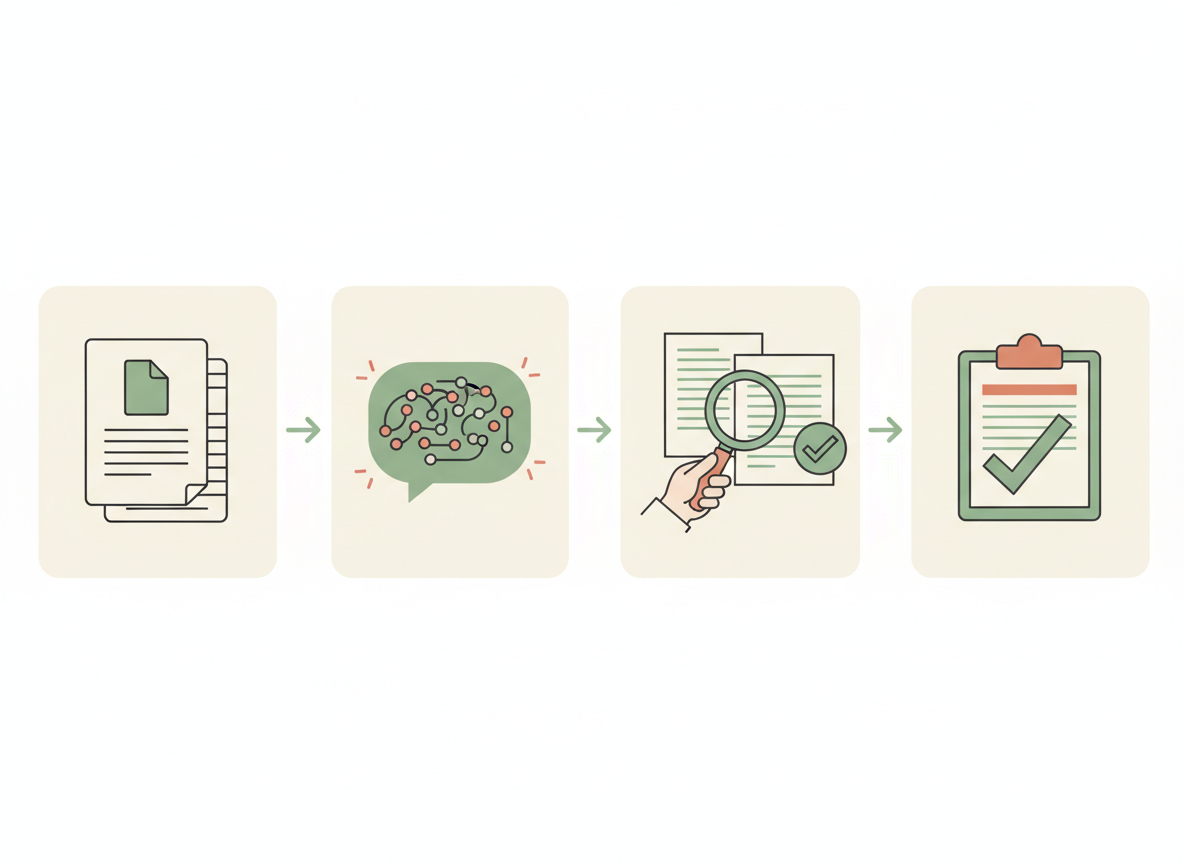
SOURCE → DRAFT → VERIFY → FINAL
Illustration: Four distinct stages keep drafting separate from evidence-based verification and final human judgment.
Step 6: turn the verified result into something useful
Once the facts are checked, format the result for the reader instead of forwarding a wall of text. A practical one-page summary starts with the answer and then gives the evidence and action. You might use a short table or these four headings:
- What this document is: Name, author or issuing organization, edition/date, and intended use.
- What matters most: Three to five validated facts, including important conditions.
- What to do next: Actions, owner or recipient, and verified due dates.
- What is still unknown: Missing pages, contradictory clauses, or points requiring direct confirmation.
Keep the original PDF or a stable link with the summary. Add a brief “checked against source on” date, but only when the relevant sections were actually reviewed. For sensitive or high-stakes matters—medical treatment, legal rights, finance, safety—use qualified professional review instead of relying on an AI summary.
Step 7: run a final seven-point quality check
- Complete source: Is the version current and are any pages missing?
- Numbers: Did you check every high-impact amount, percentage, unit, and date?
- Exceptions: Are limitations, exclusions, and conditional rules preserved?
- Evidence: Does each central claim match the passage and section in the PDF?
- Charts: Did you manually inspect any tables, graphics, and scanned portions the tool may have missed?
- Privacy: Was the document shared only where policy and permissions allow?
- Reader action: Can someone tell what to do next and what remains unverified?
If one of these checks fails, revise only the relevant claim and run the check again. A short trustworthy summary beats a long answer with invented citations.
Common mistakes that create misleading PDF summaries
- Trusting fabricated citations: An AI page reference is a hint to verify, never a substitute for opening the page.
- Ignoring footnotes: Fees, exceptions, and applicability conditions may live under tables or on final pages.
- Assuming every page is readable: Image-only scans and diagrams may be processed differently across tools and account types.
- Posting private files into the wrong AI service: Check permissions, retention, and organizational rules before upload.
- Replacing a complete document with a summary: Retain the official source whenever decisions or compliance depend on exact wording.
Frequently asked questions
Can AI summarize a scanned PDF?
Some tools can interpret scanned images or use optical character recognition, but capability varies by service, account, and file. Verify the actual page content; if a scan is unreadable, the appropriate response is to flag it rather than guess.
Can I trust page numbers provided by an AI assistant?
Not without checking. Match the answer to the printed or viewer page and surrounding language, especially when PDF page labels differ from the file’s position count.
Is it safe to upload a work PDF into ChatGPT?
That depends on who owns the document, whether your organization permits it, what information it contains, and which account or product you use. Review your company’s policy, contract commitments, and the service’s current data controls. A public document is a safer starting point for learning.
Official sources and related practical guides
- OpenAI: Uploading files and audio to ChatGPT — supported file types, file questions, and important retrieval limitations.
- OpenAI: Data controls in ChatGPT — account privacy choices and model-improvement settings.
- NIST: Generative AI Risk Management Profile — AI-generated false claims, citations, and risk management.
- Turn messy notes into an AI-assisted action plan — practice turning verified information into actions.
- Edit and fact-check an AI-assisted draft before sharing it — apply a review checklist to your final summary.
Official references checked October 9, 2026. This article is general educational guidance. The six-page venue agreement, payments, and page citations in the worked example are fictional. Images are AI-generated illustrations, not screenshots of an actual document-processing result. Tool features, service terms, and data settings can change.
Leave a Reply